Create Credential Template
A credential template defines a single credential type: its format, attributes, validity period, and how the credential card is displayed. When you issue a credential - manually or via the API - you pick a credential template; the actual credential is created based on its configuration.
Every credential template belongs to an issuer template.
What is a credential template?
A credential template is the configuration that determines what a specific verifiable credential looks like and contains: its format (SD-JWT VC, VC-JWT, JSON-LD, or ISO mdoc), its type identifier, the attributes it carries, how long it stays valid, and how its card is displayed to the holder. Every time you issue that credential type, the wallet applies this configuration.
Open the credential templates list
- Go to Settings → Templates (under Issuer).
- Open the issuer template you want to add a credential template to.
- Switch to the Credential templates tab.
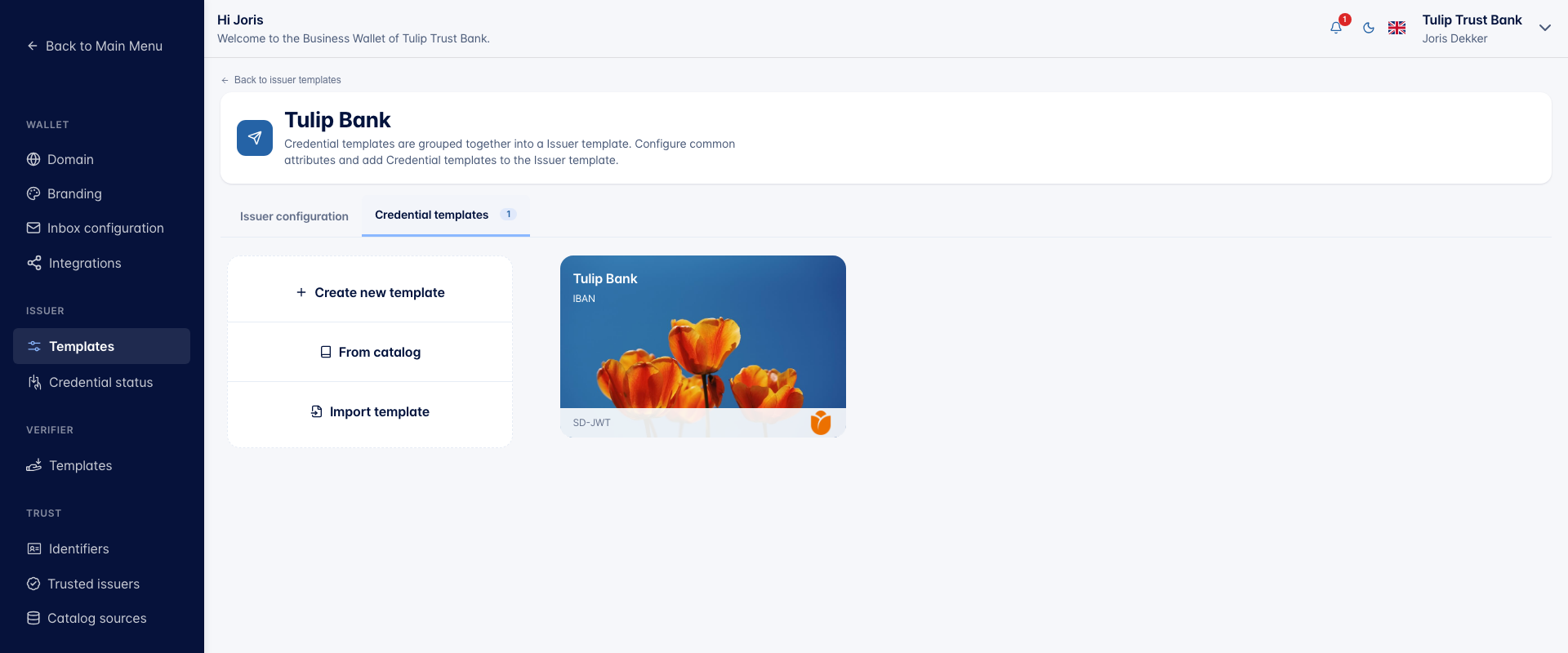
From here you can:
- Create new template - start from a blank credential template
- From catalog - start from a credential type in a catalog and pre-fill the template
- Import template - import a credential template that was previously exported
Existing credential templates are shown as cards displaying the issuer name, credential type, and credential format.
Credential configuration
The top of the credential template form sets the identifier and supported languages.
- Credential Issue template key (required) - A unique key for this template. Issuance clients pass this key to the Start Issue Credential API to identify the template.
- Select languages - Pick the languages for which you want to provide specific translations.
Type tab
Configure what kind of credential this template issues.
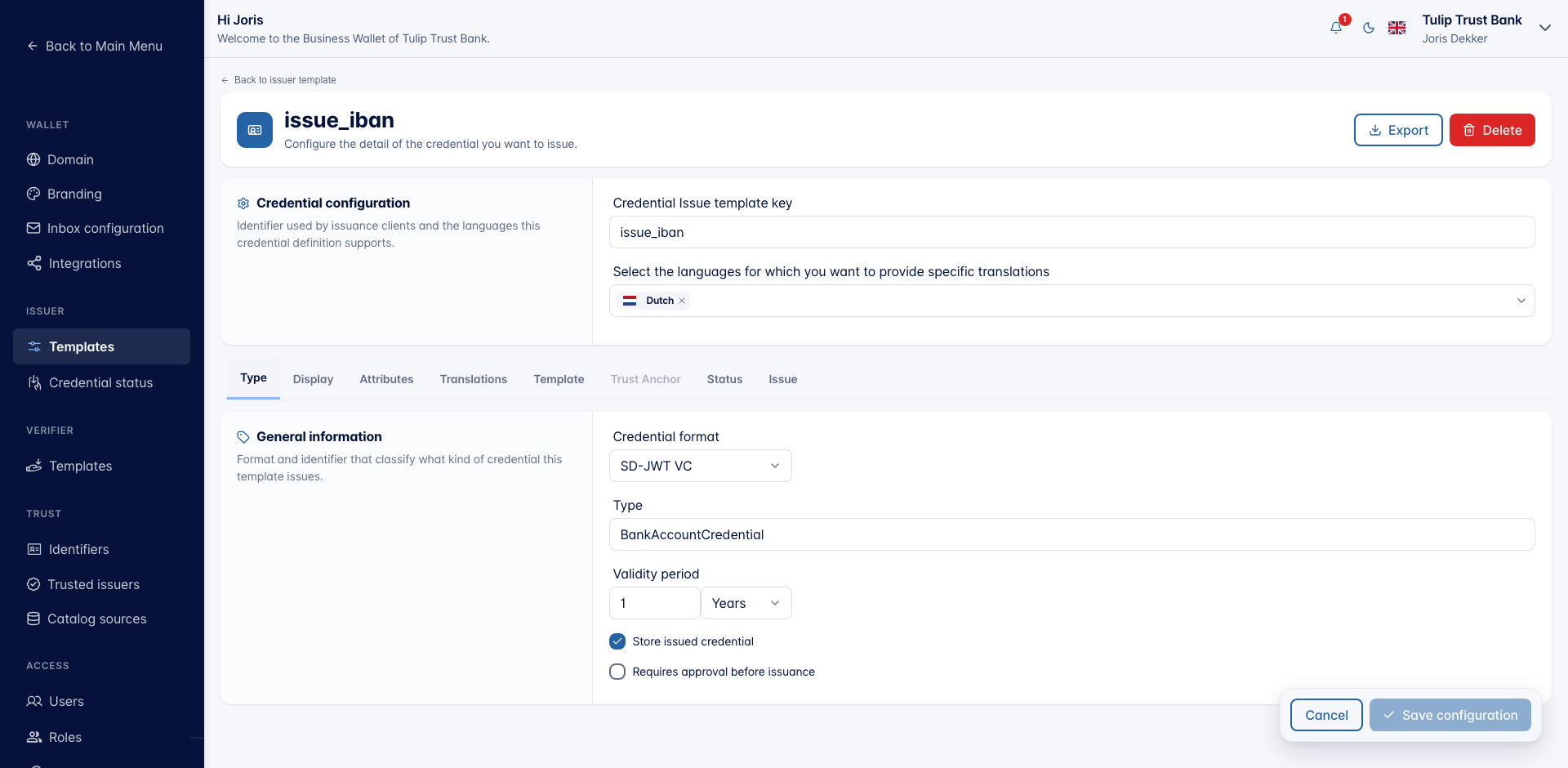
- Credential format - Pick from
VC-JWT,SD-JWT VC,JSON-LD, orISO mdoc. - Type - The credential type identifier, e.g.
BankAccountCredential. - Validity period - A number and a time unit (
Seconds,Minutes,Days,Months,Years). - Store issued credential - When enabled, the credential is stored in your wallet after issuance. Stored credentials can be viewed under Issuer → Issued.
- Requires approval before issuance - When enabled, an issuance request is held until someone in your organization approves it.
The Export and Delete buttons at the top of the form let you export the credential template to JSON (for re-import into another wallet) or remove it entirely.
Display tab
Define how the credential card is displayed. Settings can be configured per language; the Default language is used as a fallback.
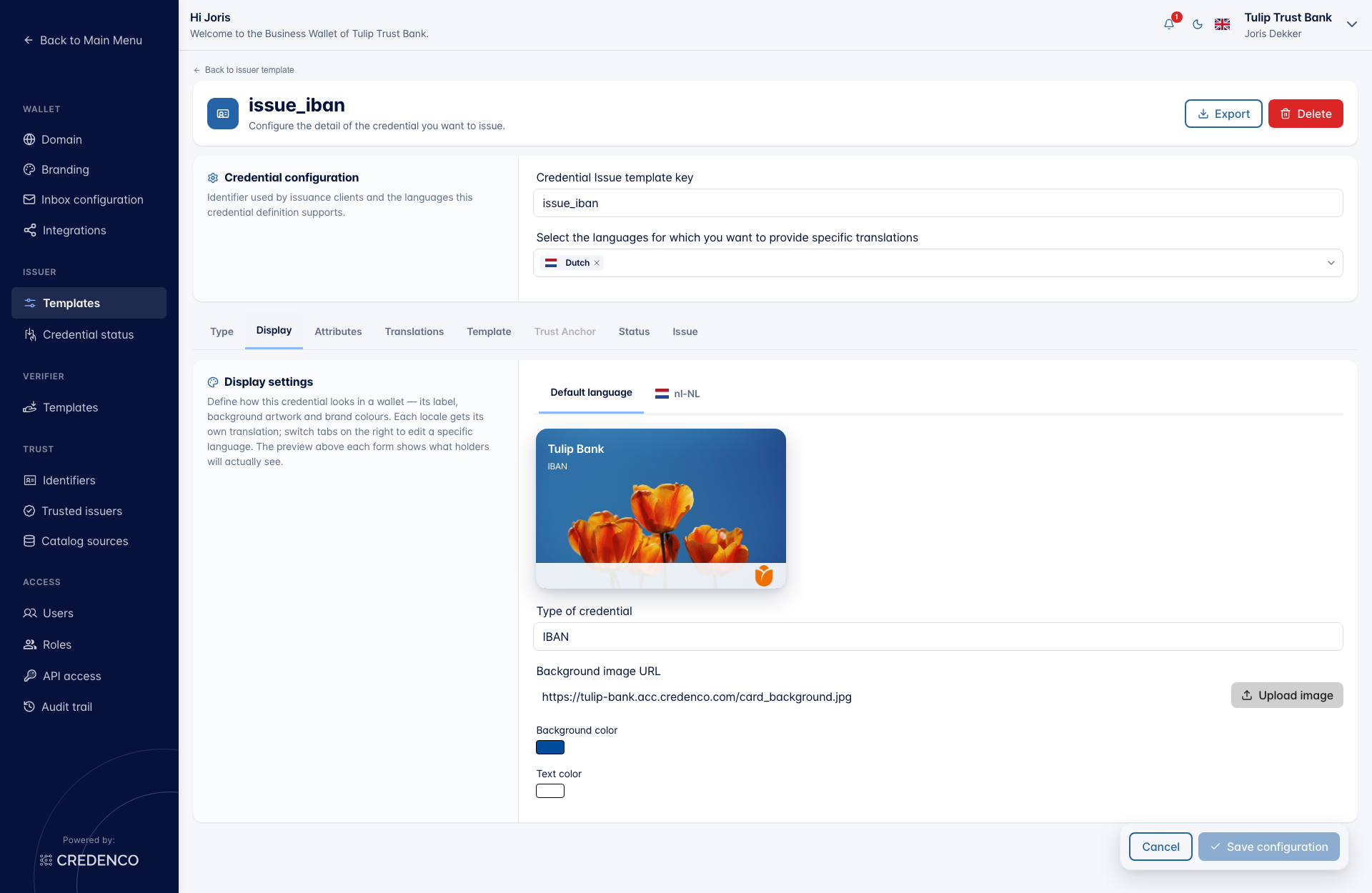
- Type of credential - The type or label shown on the credential card (e.g.
IBAN). - Background image URL - Optional URL of a background image for the credential card. Click Upload image to upload an image instead.
- Background color - Used when no background image is provided.
- Text color - Color of the text on the card.
A live preview of the card is shown next to the settings.
Attributes tab
Define the attributes that make up the credential.
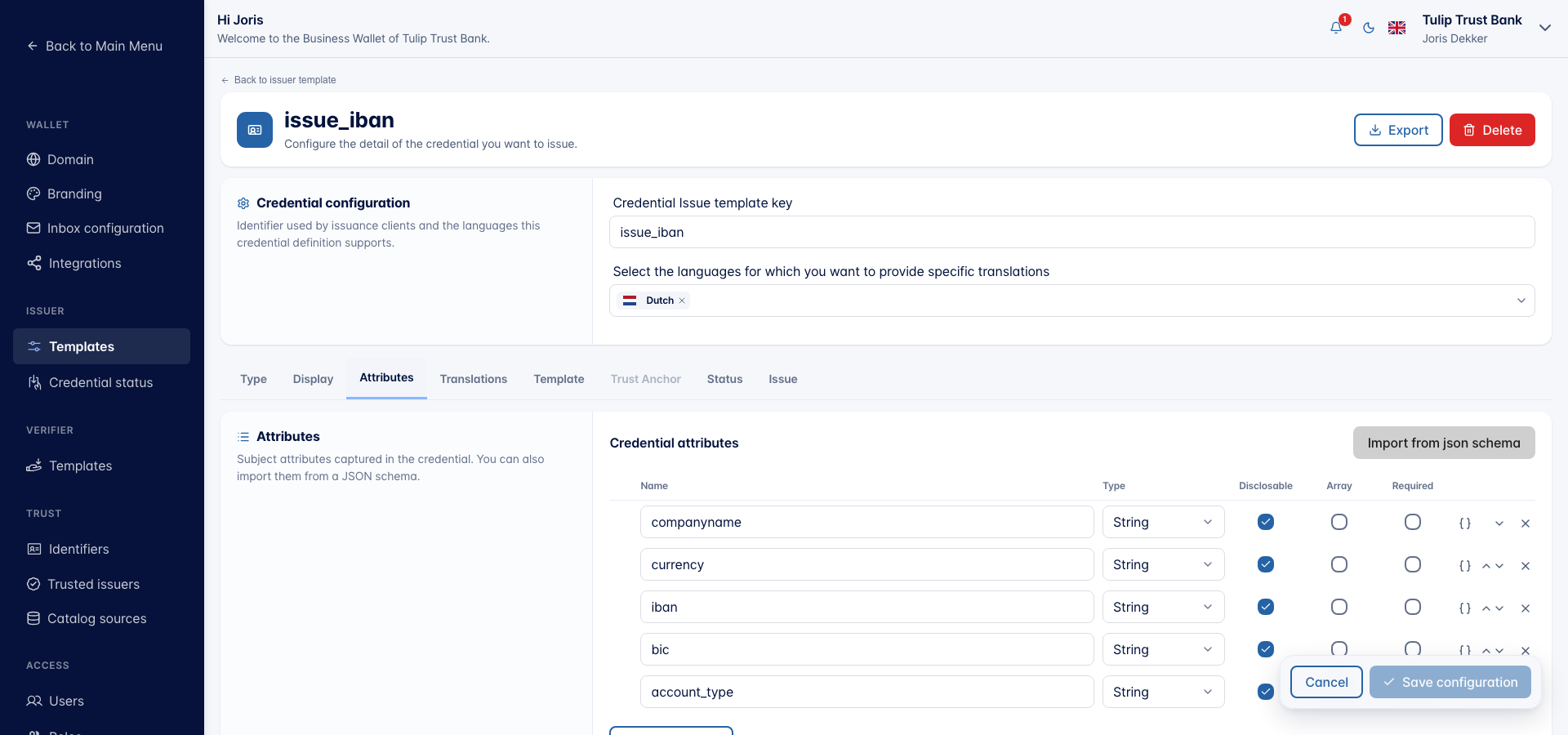
Each attribute has:
- Name - The key used in the credential, e.g.
currency. - Type - One of
String,Complex type,Integer,Number,Boolean. - Disclosable - Whether the attribute can be selectively disclosed.
- Array - Whether the attribute can contain multiple values.
- Required - Whether the attribute must be included in the credential.
Click Add attribute to add an attribute, or click Import from json schema to import the attribute set from a JSON Schema and stay consistent with an external definition.
Translations tab
Configure translations for the attribute display names. These are the labels shown on the credential card.
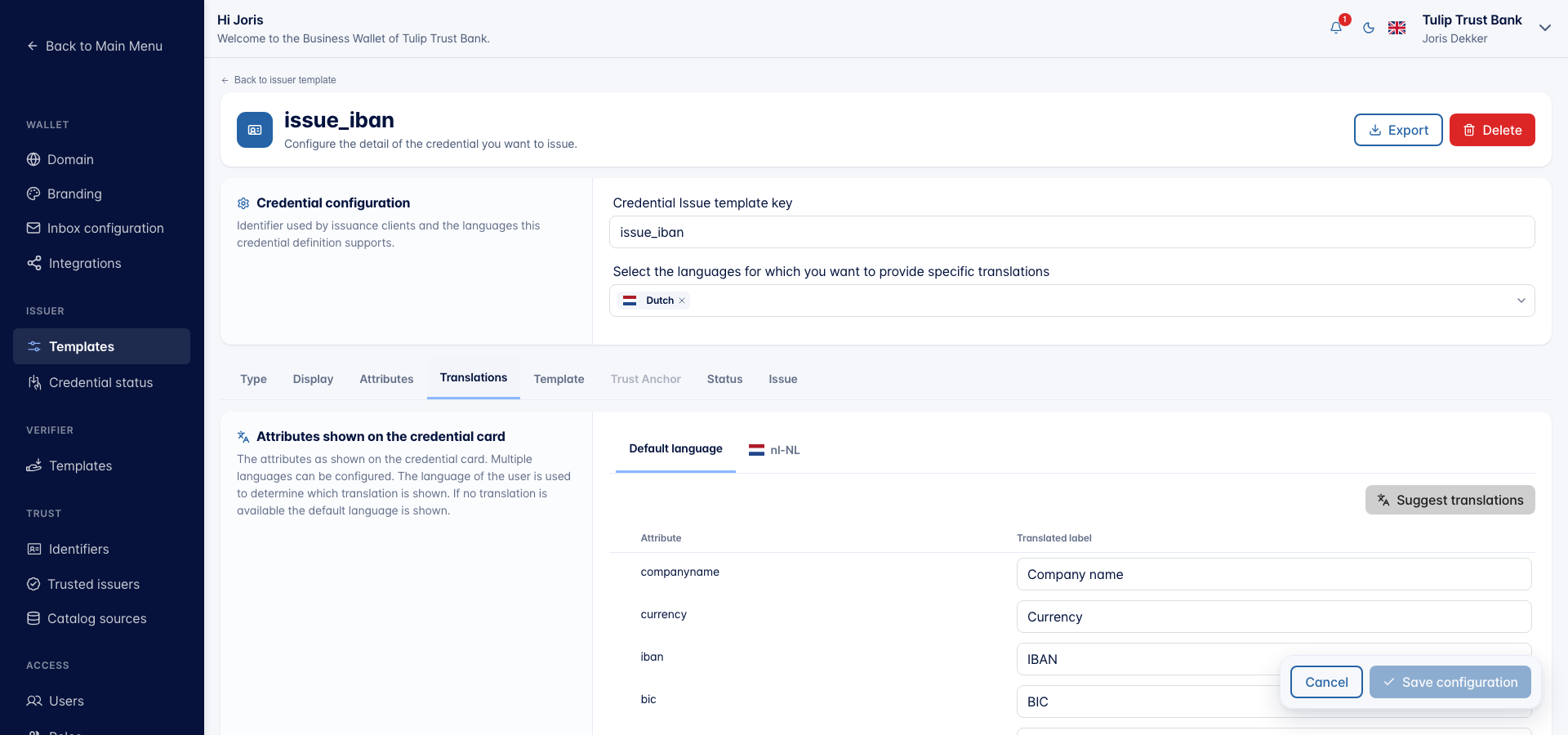
All attributes defined on the Attributes tab appear here. For each language, enter the display name that should appear on the credential card.
Suggest translations
Click Suggest translations to auto-fill the Translated label column for the currently selected language tab. The button derives a human-readable label from each attribute's technical name (for example, companyname → Company name) and translates it into the language of the active tab.
Use it to bootstrap a new language tab - empty fields are filled in one click - and then refine any labels that need a more domain-specific wording.
Template tab
The Template tab sets which identifier signs the credential and lets you override the credential template.
- Select the issuer identifier - The identifier of this wallet that signs the credentials, for example Main Identification.
- Use default template / Use custom template - Keep Use default template unless the automatic template generation isn't sufficient for your use case. Choose Use custom template to write your own.
Trust Anchor tab
The Trust Anchor tab is only available for credential formats that use a trust anchor. It is disabled for SD-JWT VC templates. For the trust anchors your wallet trusts, see Trusted issuers.
Status tab
The Status tab links the credential to a status list, which is used to communicate the credential's status (e.g. valid, revoked) after issuance. Configure status lists under Settings → Credential status before linking them here. See Credential status and revocation.
Issue tab
Use the Issue tab to manually issue a credential and verify the configuration end-to-end. See Issue a credential manually. You can also send the credential directly to a wallet, see Issue directly to a wallet.
Save
Click Save configuration at the bottom of the form to save changes across all tabs. The Save configuration and Cancel buttons stay in view at the bottom of the screen while you edit.
You need the Issuer templates (Change) permission to create, edit, or delete credential templates.