Create Issuer Template
An issuer template (called Credential Issuer definition in the UI) holds the general configuration shared by every credential template grouped under it.
What is an issuer template?
An issuer template is the shared identity every credential of that issuer is issued under: its name, logo, technical configuration key, supported interoperability profile, and supported languages. You create one issuer template per issuing identity, then attach one or more credential templates to it, so every credential of that issuer looks and behaves consistently.
Navigate to issuer templates
Go to Settings → Templates (under Issuer).
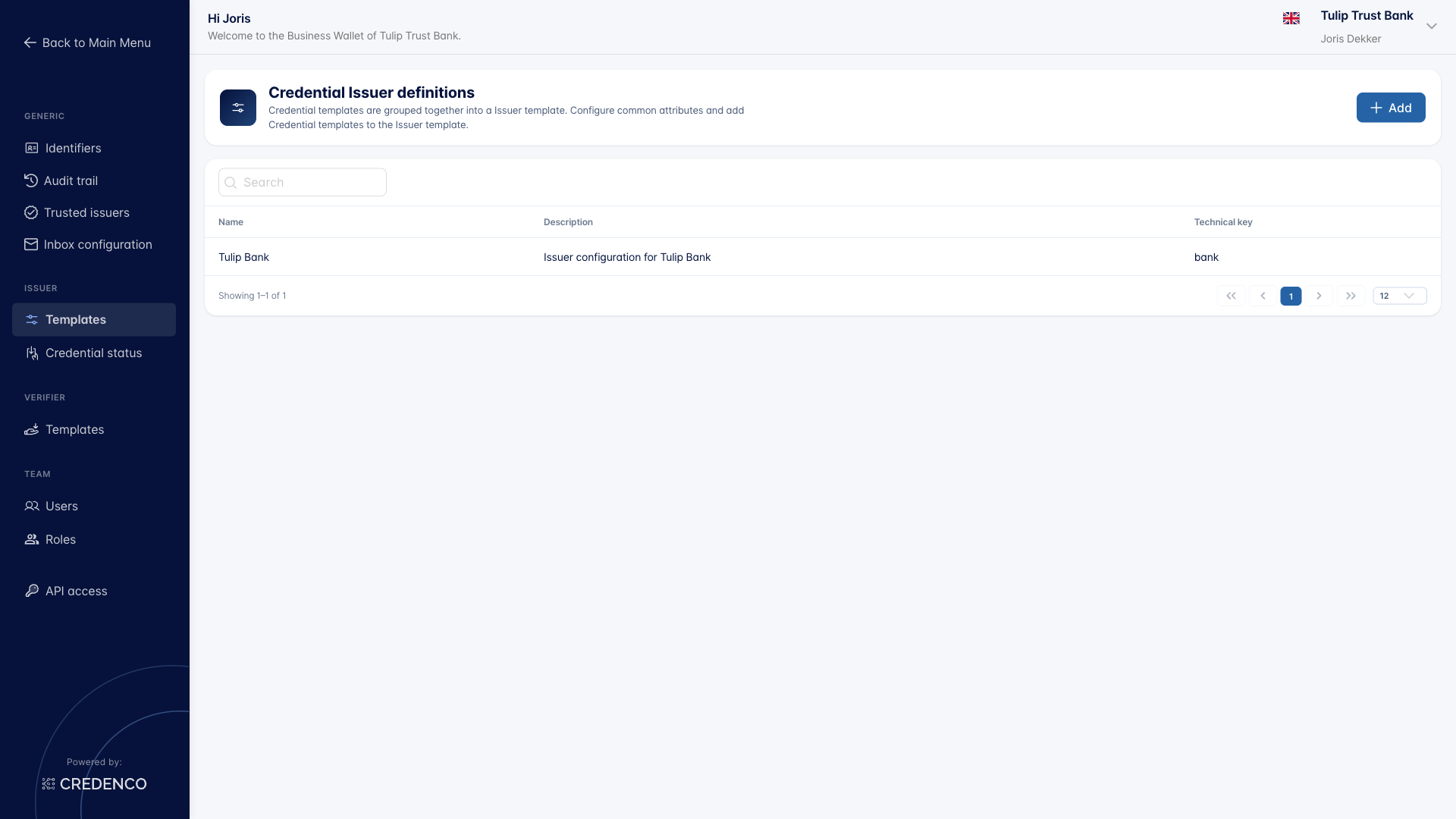
The table lists all configured issuer templates with their Name, Description, and Technical key. Click any row to open the issuer template, or click Add to create a new one.
Issuer template form
An issuer template has two tabs:
- Issuer configuration - identity, OpenID parameters, and display settings
- Credential templates - the credential templates that use this issuer
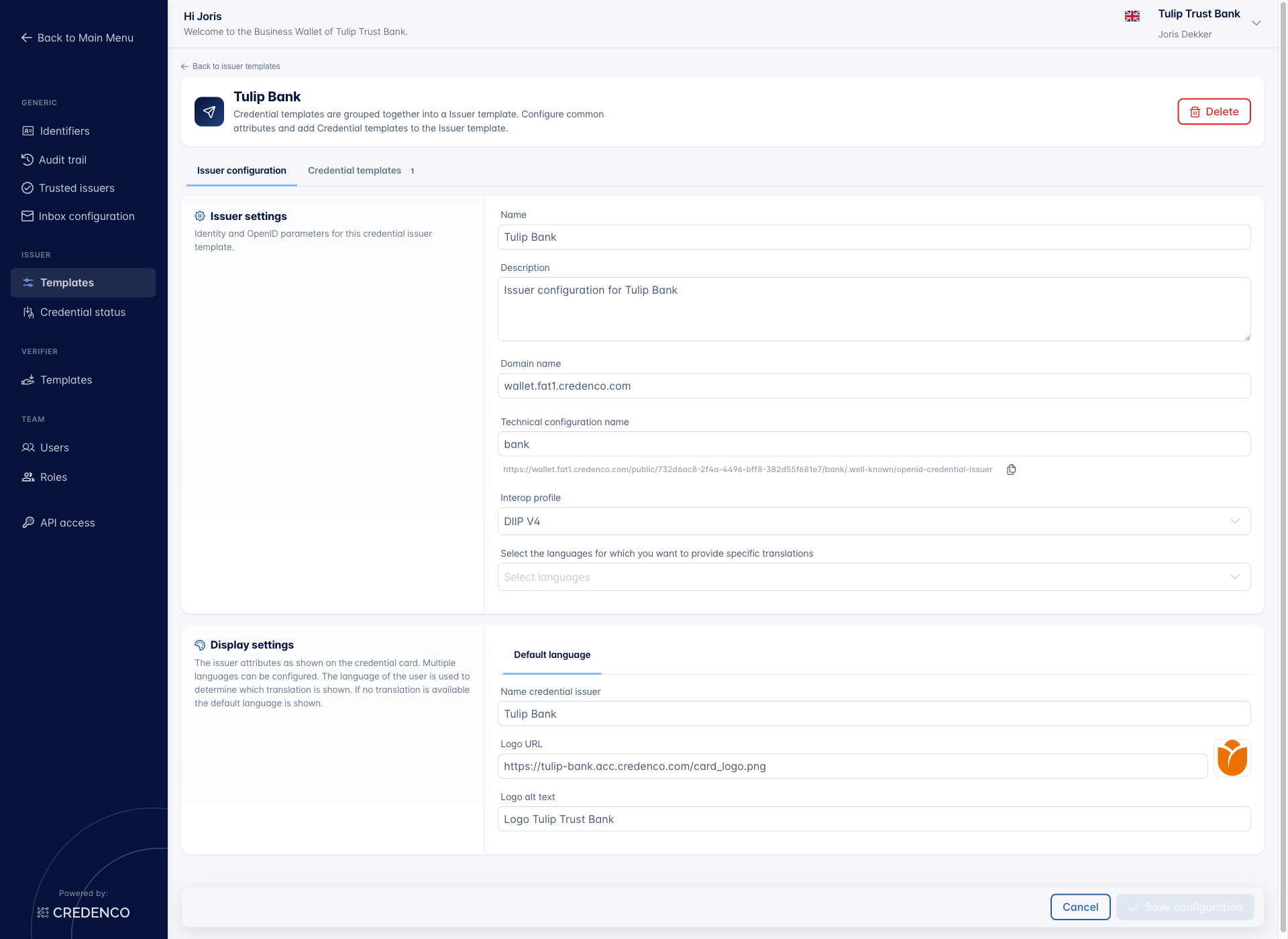
Issuer settings
Configure how this issuer identifies itself.
-
Name - A logical name of the configuration. Shown in the UI only. Not included in the credentials.
-
Description - A short description that helps you find the configuration later. Shown in the UI only.
-
Domain name - The domain name used by this issuer.
-
Technical configuration name - The name used in the public configuration URL of this issuer (e.g. the OpenID credential issuer well-known endpoint).
-
Interop profile - The interoperability profile that defines the protocol versions used between the issuer and the wallet. Pick from:
DIIP V3DIIP V4DIIP V5HAIP
See the DIIP specification for details on the DIIP profiles, or the OpenID4VC High Assurance Interoperability Profile for HAIP. Use the latest version unless you have specific requirements to choose an older one.
-
Select languages - Pick the extra languages you want to provide specific translations for. The default language is always present and is used when no specific translation is configured.
Display settings
Display settings control how the issuer appears on the credential card. They can be configured per language; the Default language tab is always present.
- Name credential issuer - The issuer name as shown on the credential card.
- Logo - Upload an image or provide a URL. The logo may be shown on the credential card.
- Logo alt text - The alternative text for the logo, used for accessibility.
Save or delete
Click Save configuration at the bottom of the form to apply your changes, or Cancel to discard them.
To remove an issuer template entirely, click Delete in the top right. Deleting an issuer template removes all credential templates grouped under it.
You need the Issuer templates (Change) permission to add, edit, or delete issuer templates.