Import a key from a PKCS12 file
What does importing a PKCS#12 key do?
Importing a PKCS#12 key lets you reuse a signing key you already own, instead of generating a new one in the wallet. You upload a PKCS#12 file containing one private and one public key, and the wallet stores it as a cryptographic key that credential issuance and DID operations can then sign with.
Importing a key
Importing your own existing keys to be used by the Business Wallet for signing credentials is possible. You can import your keys from a PKCS#12 file. The file must contain 1 private and 1 public key, and the file password must be the same as the private key password.
- Open the main menu and click Settings.
- In the settings menu, select Identifiers.
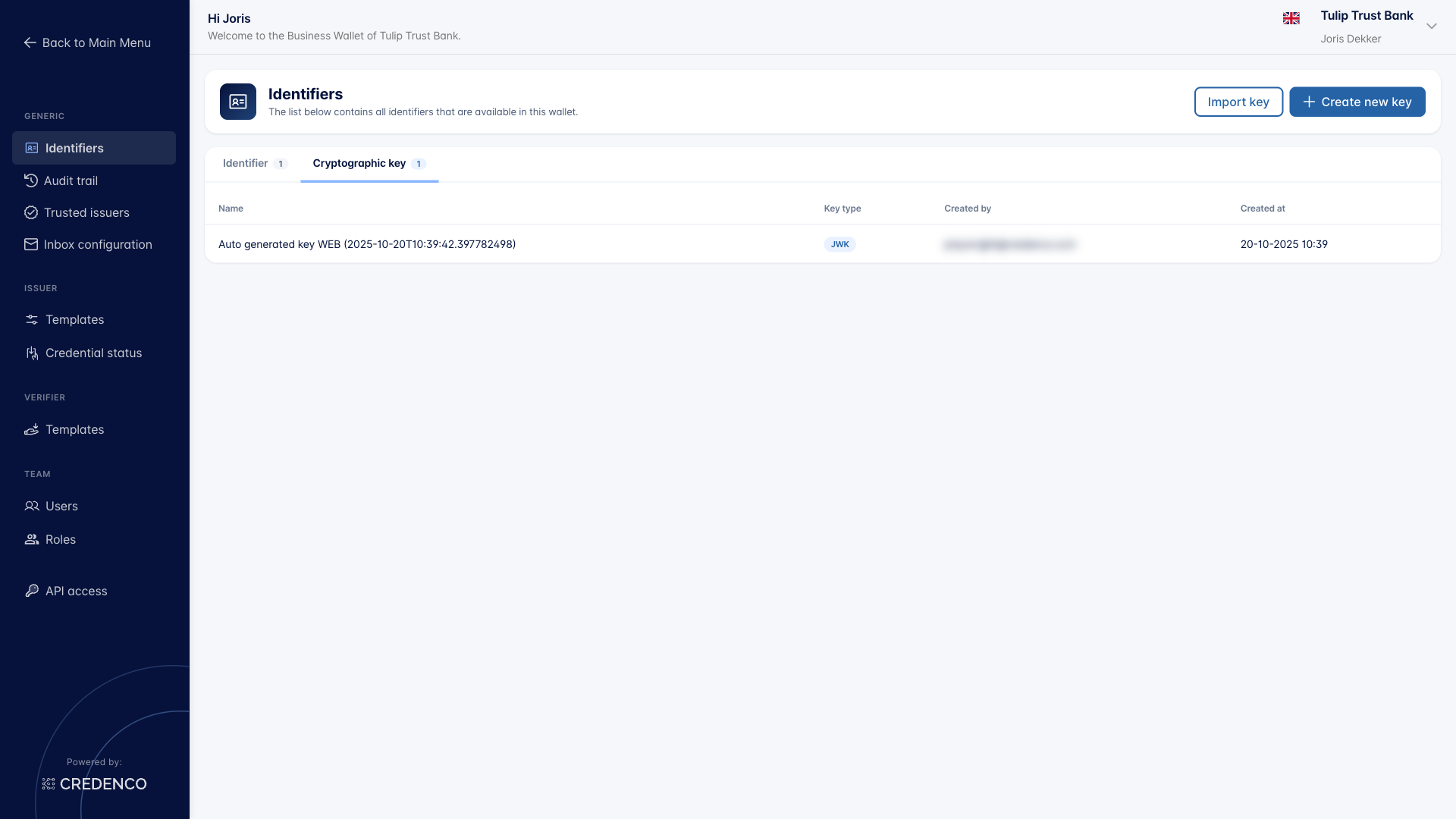
- Open the Cryptographic key tab.
- Click on the Import key button.
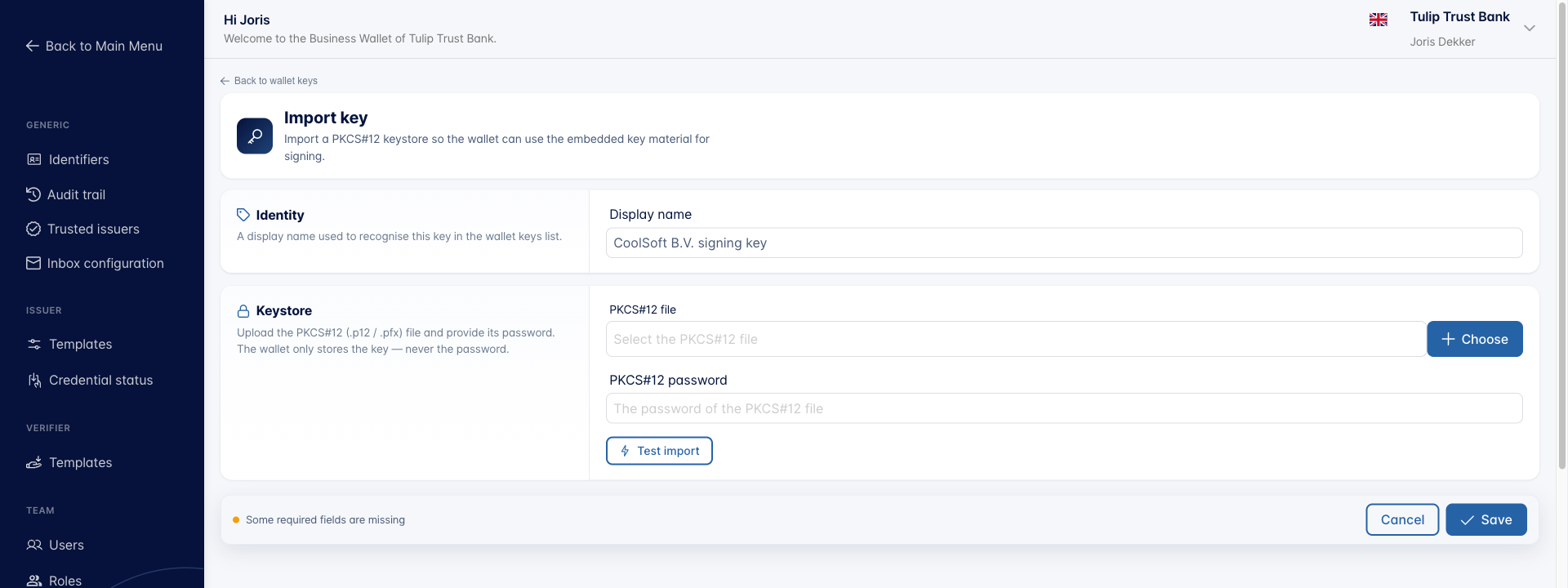
- Fill in a Display name for the key. This name is shown in the wallet when key selection is needed.
- Click Choose next to PKCS#12 file and select the PKCS#12 file from your computer.
- Enter the password in PKCS#12 password. Make sure you are using the password that applies to both the PKCS#12 file and the private key inside it.
- Click on the Test import button to check whether the key can be imported correctly.
- When the test succeeds, a dialog shows the key details (key type, key ID, validity dates, subject and issuer DN). Review the details and click OK to close the dialog.
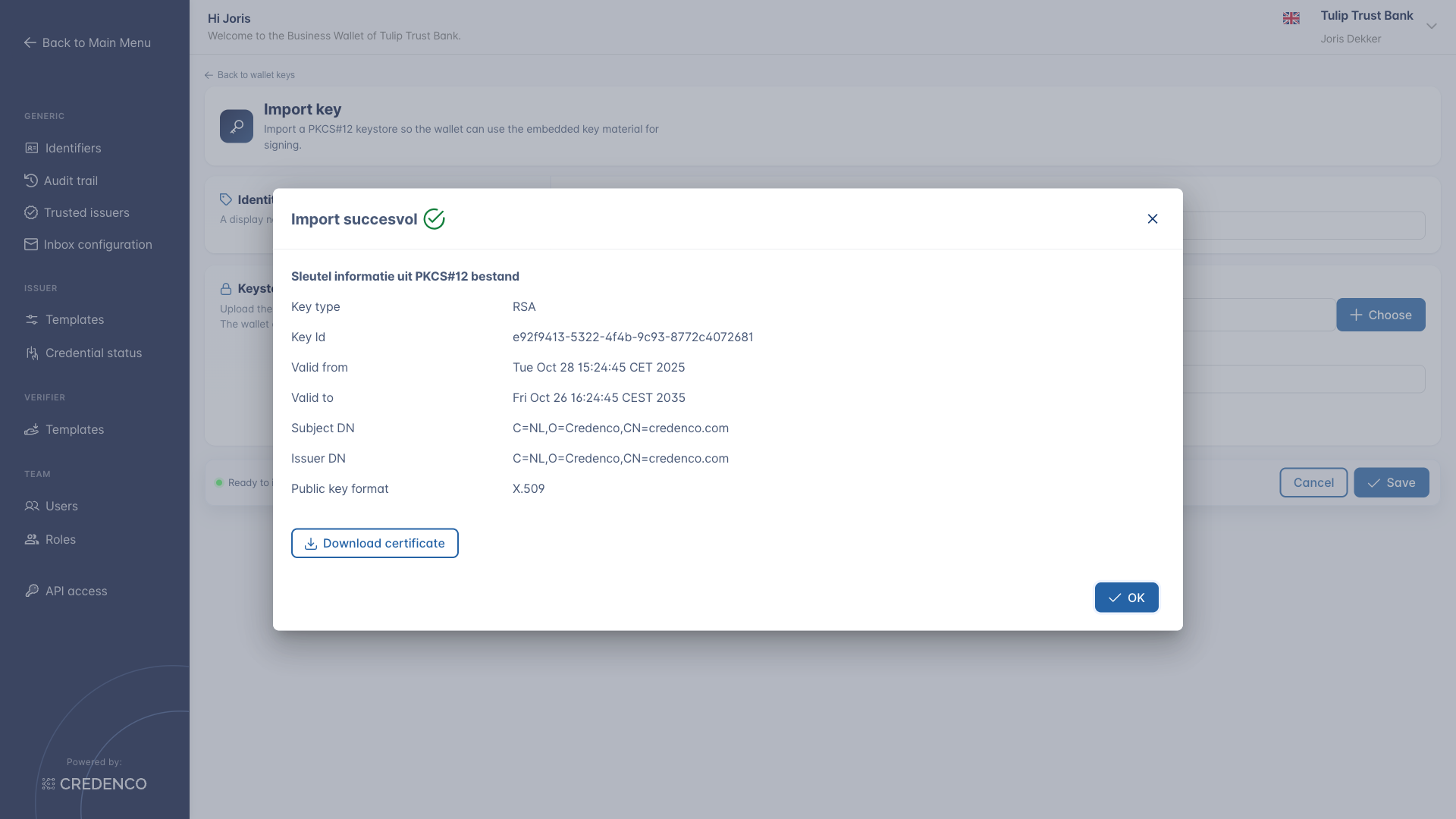
- Click the Save button to import the key.
- The key is imported and appears in the list on the Cryptographic key tab, ready to be used.
Required permission
You need the Identifiers (Read) permission to view this screen, and Identifiers (Change) to import cryptographic keys.