Google Cloud KMS
Google Cloud KMS allows you to store and manage your wallet's cryptographic signing keys in Google Cloud's infrastructure. You can choose between software-based or hardware (HSM) protection for your keys.
Prerequisites
Before you begin, make sure you have:
- A Google Cloud project with the Cloud KMS API enabled
- A service account with appropriate KMS permissions
- The service account credentials JSON file
Navigate to the key form
- Click Settings.
- Under Generic, click Identifiers.
- Select the Cryptographic key tab.
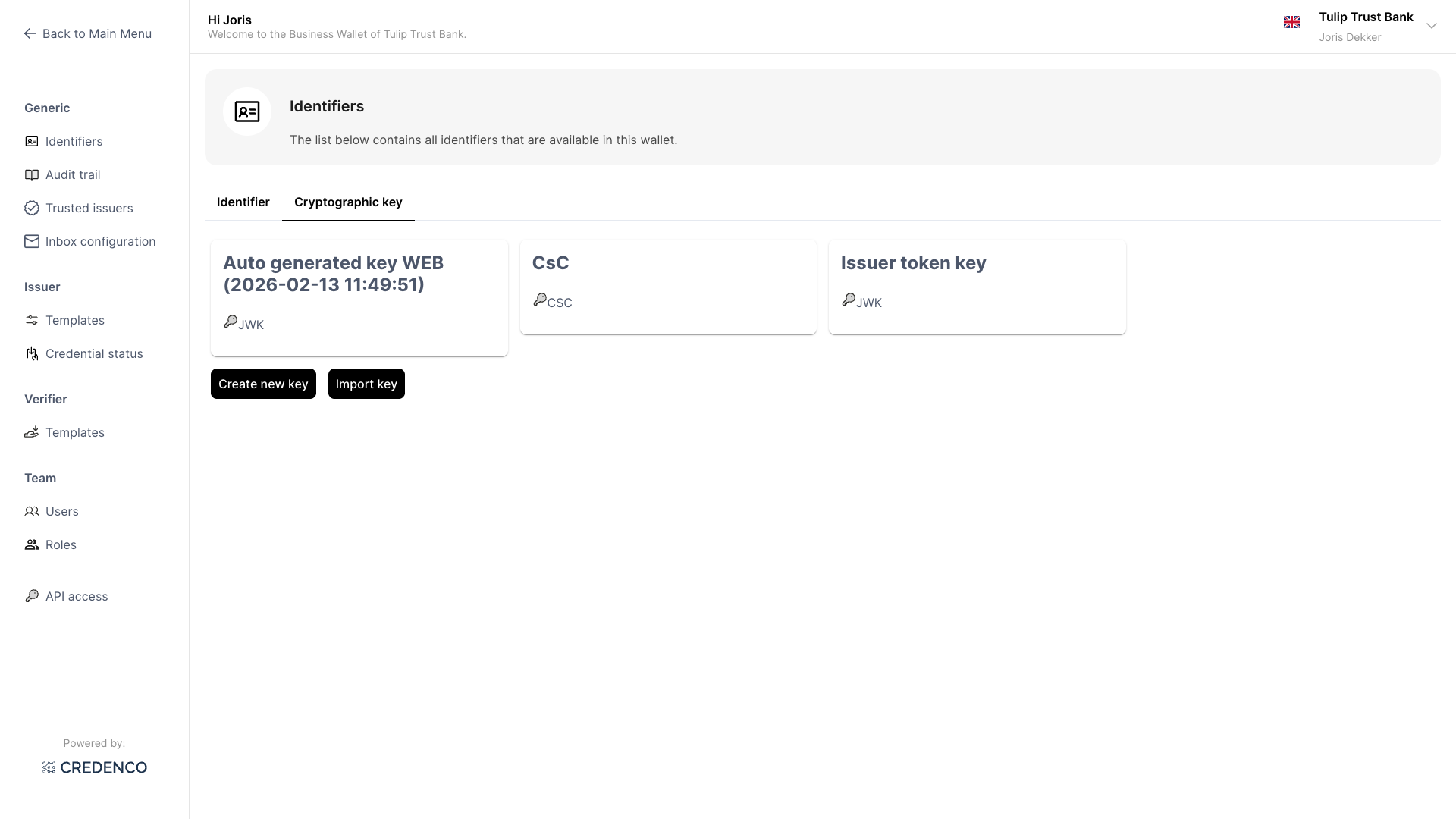
- Click Create new key.
Configure a Google Cloud KMS key
- Select Google Key Management Service as the Key type.
- Enter a Display name for the key. This name is shown in the wallet when key selection is needed.
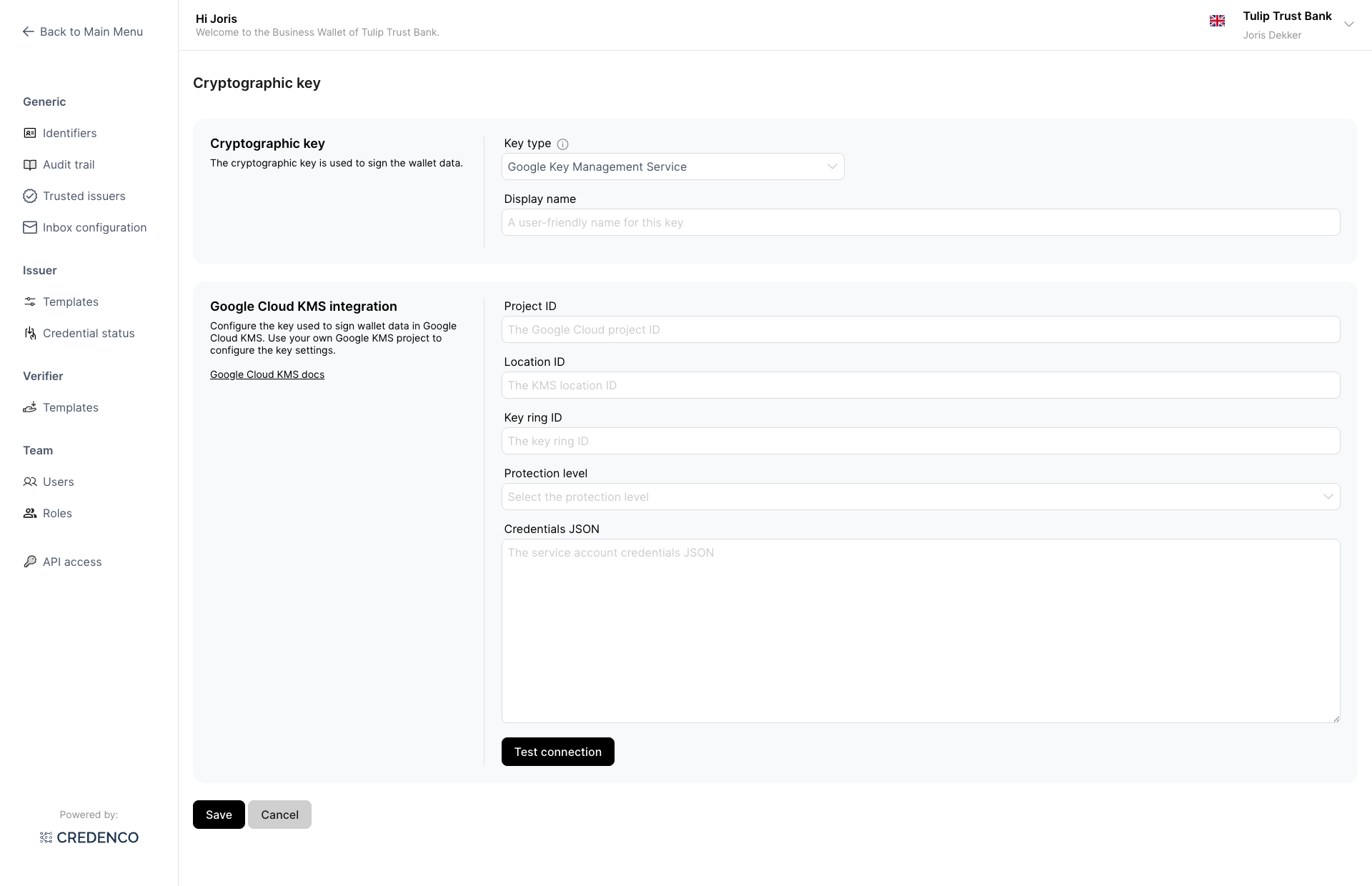
- Fill in the Google Cloud KMS configuration fields:
| Field | Description |
|---|---|
| Project ID | Your Google Cloud project identifier |
| Location ID | The Google Cloud region where the key ring is located (e.g. europe-west4) |
| Key ring ID | The name of the key ring that will contain the key |
| Protection level | Choose Software for software-based key storage, or HSM for hardware security module protection |
| Credentials JSON | Paste the full contents of your service account credentials JSON file |
Obtaining the Credentials JSON
The Credentials JSON is a service account key file that allows the wallet to authenticate with Google Cloud. To obtain it:
- Go to the Google Cloud Console.
- Navigate to IAM & Admin → Service Accounts.
- Select an existing service account or create a new one.
- Make sure the service account has the Cloud KMS CryptoKey Signer/Verifier role (or a custom role with equivalent permissions).
- Click Keys → Add Key → Create new key.
- Select JSON as the key type and click Create.
- A JSON file will be downloaded. Open it and paste its full contents into the Credentials JSON field.
caution
Keep the credentials JSON file secure. It grants access to your Google Cloud KMS resources. Do not share it or commit it to version control.
- Click Test connection to verify that the wallet can connect to Google Cloud KMS with the provided configuration.
- Click Save to create the key.
Required permission
You need the Identifiers (Read) permission to view this screen, and Identifiers (Change) to create, edit, or delete cryptographic keys.