Users
The Users screen shows all users who have access to your wallet. From here you can add new users, edit existing users, and remove users who no longer need access.
How to access
- Open the left sidebar.
- Click Settings.
- Under Team, click Users.
Users overview
The users overview displays a table with all users who have access to the wallet. Each row shows the user's Username and Email address.
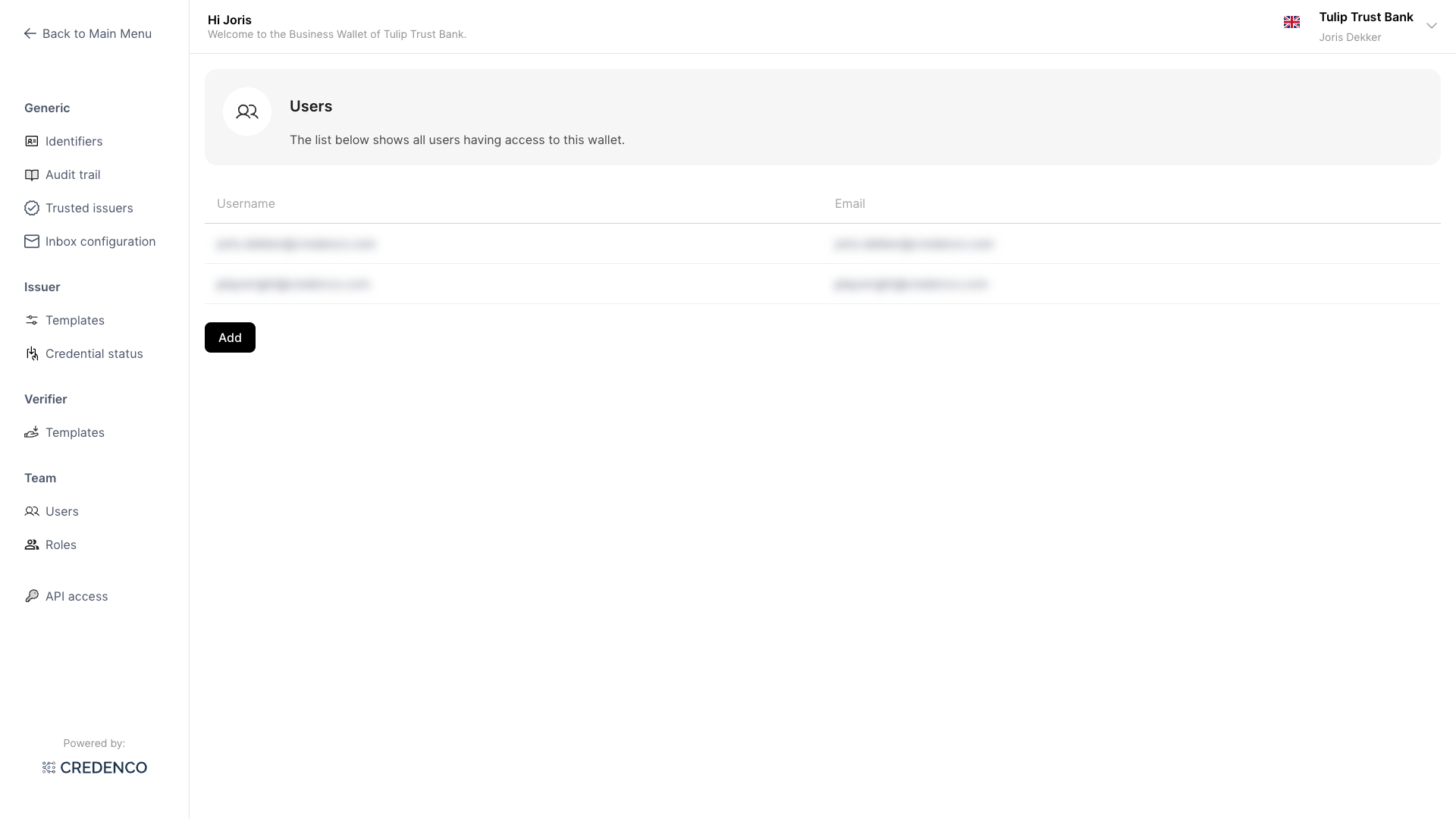
Click on a user row to open the user form and edit the user's details.
Add a user
- On the users overview, click the Add button.
- Fill in the user's First name, Last name, and Email address.
- Under Roles, select one or more roles to assign to the user.
- Click Save.
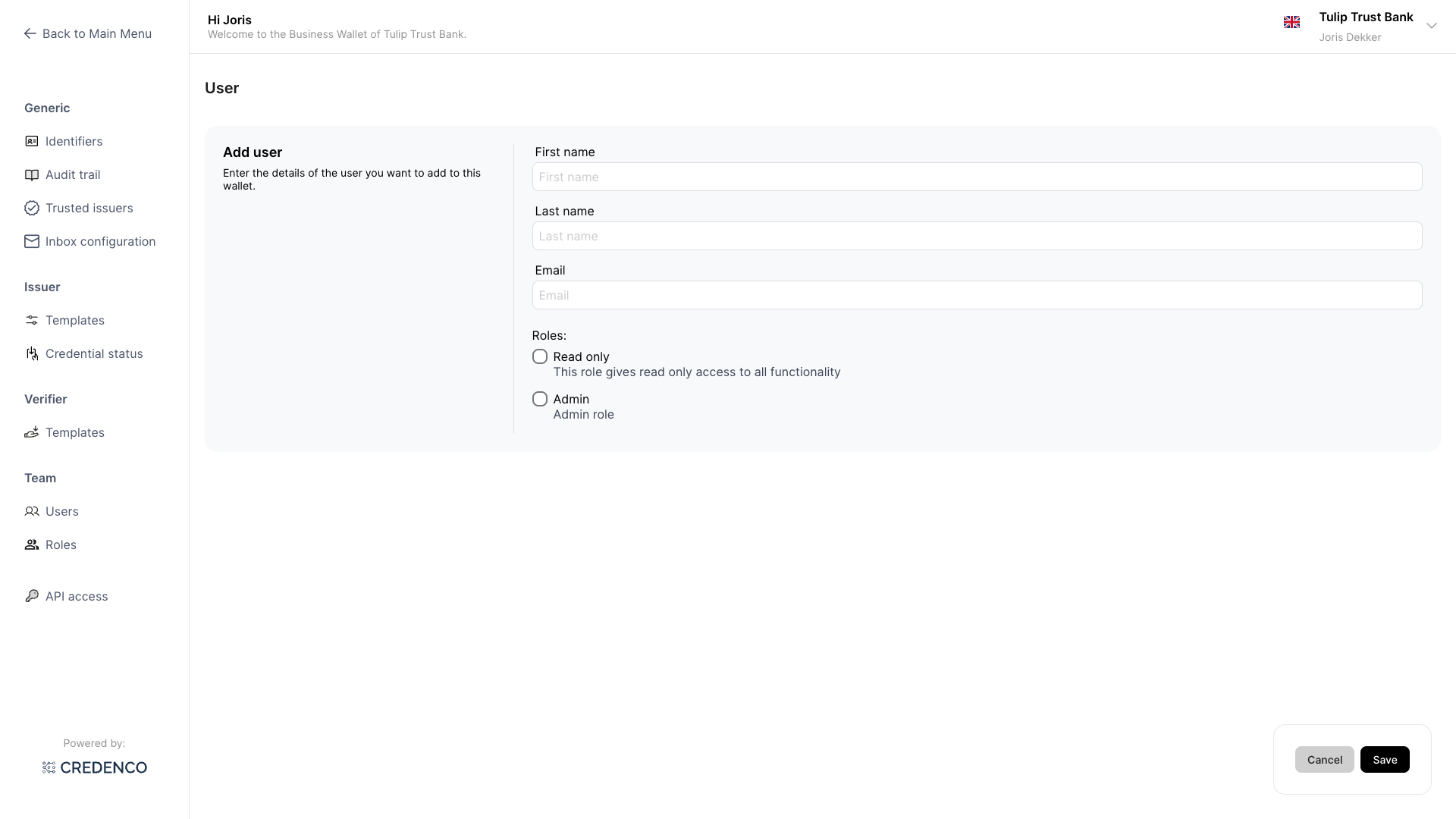
The new user will receive an email with a link to set their password and access the wallet.
Edit a user
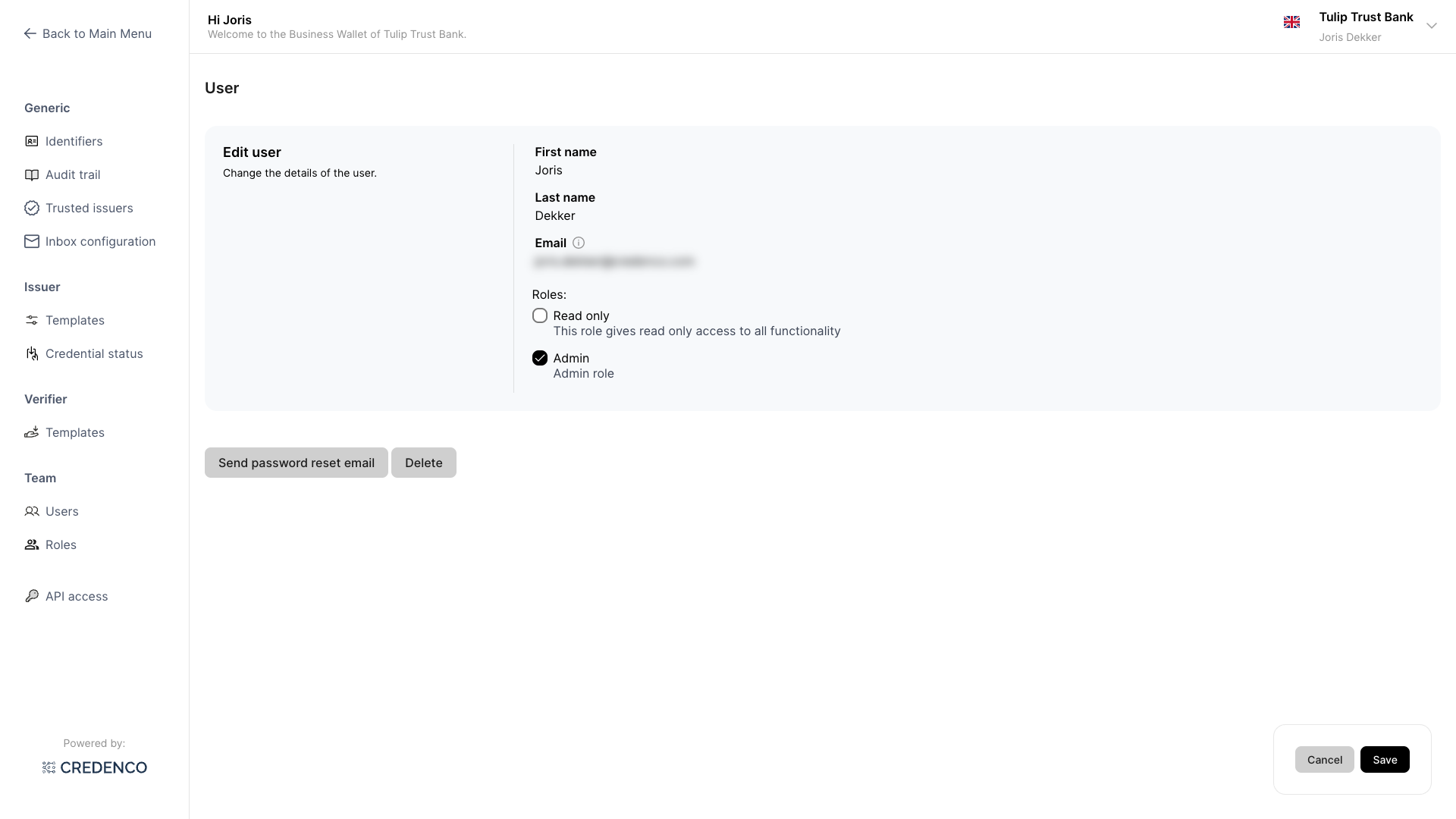
- On the users overview, click on the user you want to edit.
- Update the user's First name, Last name, or Email address as needed.
- Change the assigned Roles by checking or unchecking the role checkboxes.
- Click Save.
Delete a user
- On the users overview, click on the user you want to delete.
- Click the Delete button.
- Confirm the deletion when prompted.
Send a password reset email
From the user form in edit mode, you can send a password reset email. See Send Password Reset Email for details.
Required permission
You need the User Management (Change) permission to add, edit, or delete users. The User Management (View) permission allows you to view the users list without making changes.